GHL Calendar Tool
In this guide, you’ll learn how to set up the Go High Level (GHL) tool inside Insighto and connect its calendar functionality with your AI assistant. This enables seamless scheduling workflows, allowing your assistant to book appointments, check availability, and manage calendar interactions using GHL’s scheduling features.
Setup GHL Tool
- Go to Tools & Integration
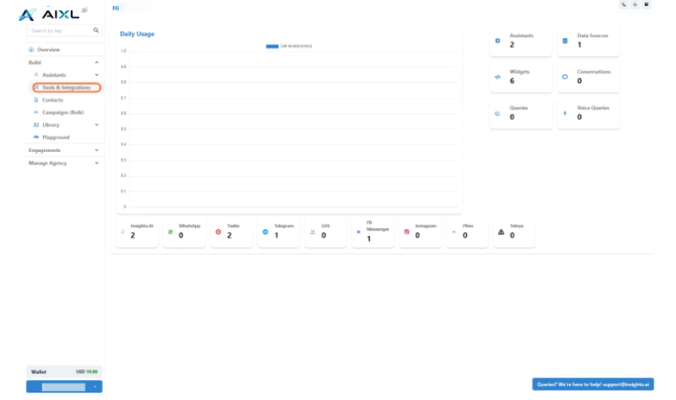
- Click on Set Up
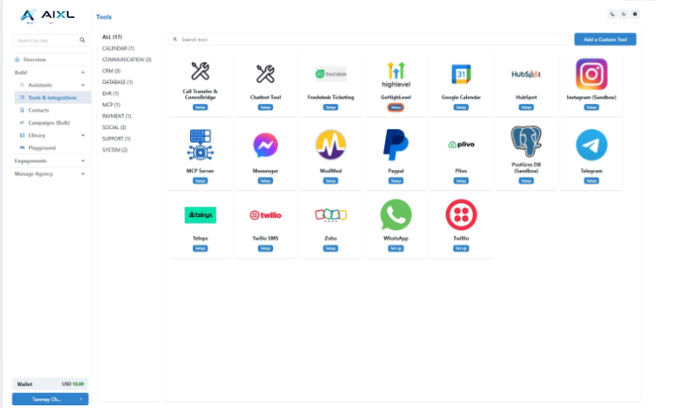
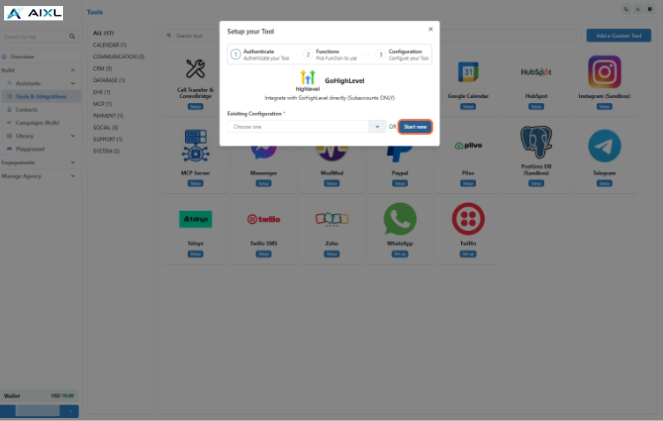
- Click on Start New
- Log In to GHL Agency Account
You’ll be redirected to the GoHighLevel Marketplace. Log in using your GHL agency credentials to authorize the integration between AIXL.io and GHL.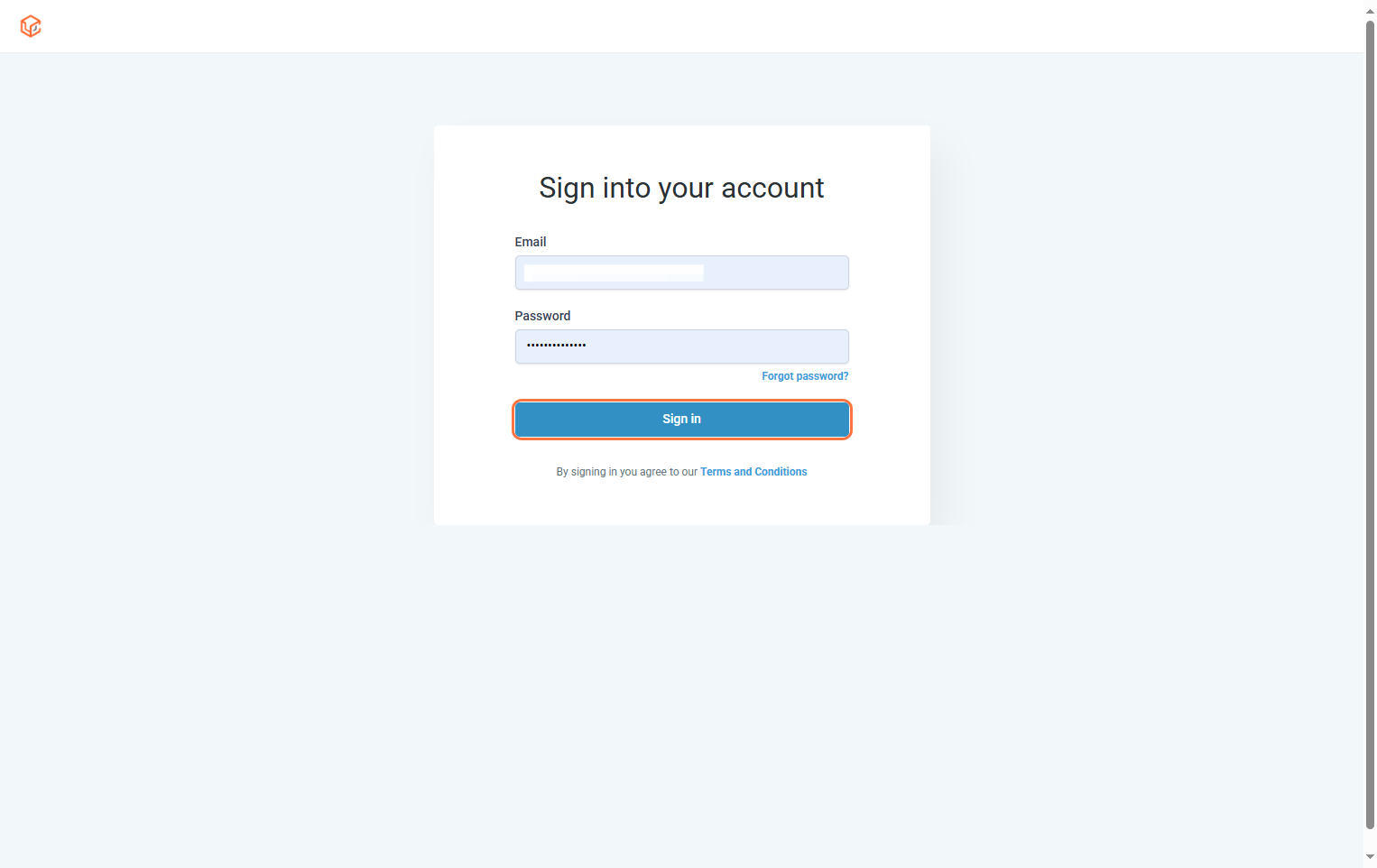
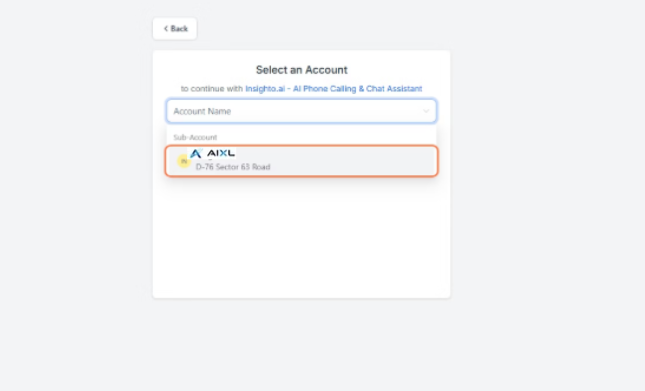
- Select a Subaccount
Choose the appropriate subaccount you want to connect with AIXL.io.
⚠️ Note: Only subaccounts can be integrated. Agency-level accounts are not supported.
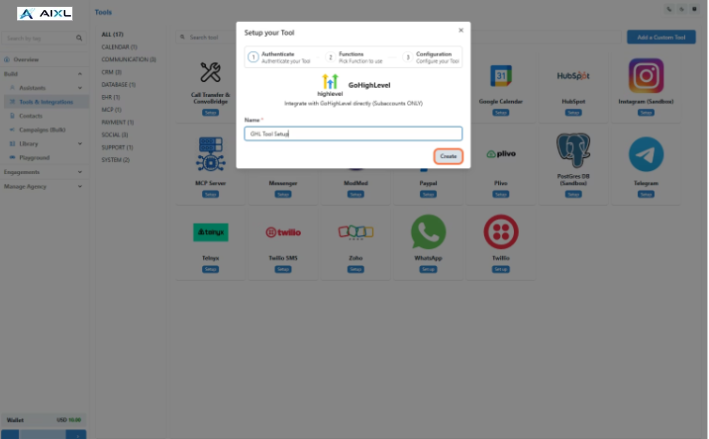
- Name Your Configuration and Click Create
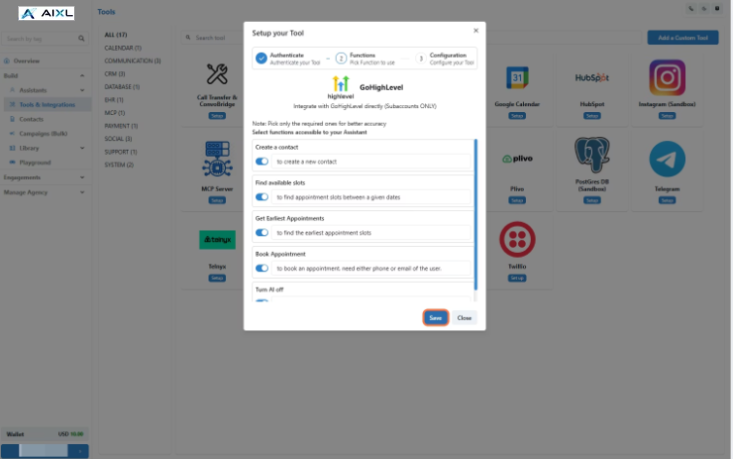
- Enable Required Functions and Save
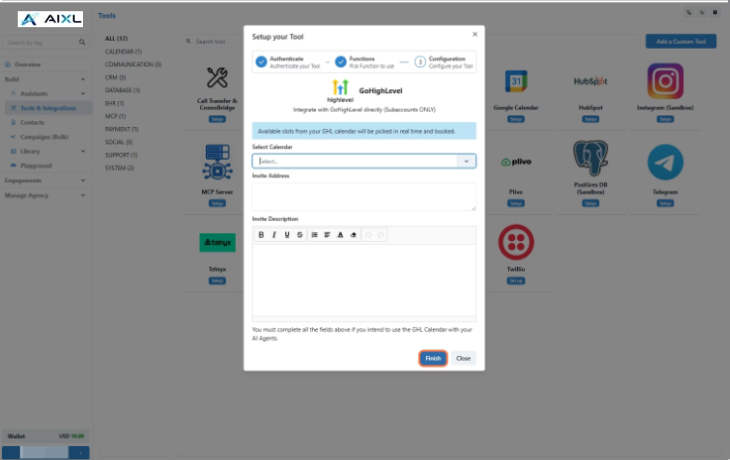
- Configure Calendar Preferences and Click Finish
Set your calendar preferences:
- Select a calendar
- Invite address
- Invite description
Connect With Any Assistant to Use Calendar Functionality
- Edit Any Existing Assistant
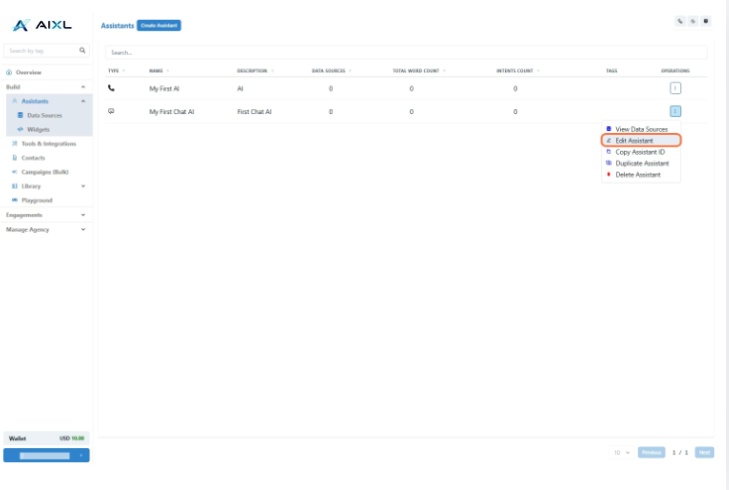
- Click on Connect Tools
In the Tools tab:
- Click Connect Tool
- Select GHL Tool as the tool type
- Choose your tool configuration
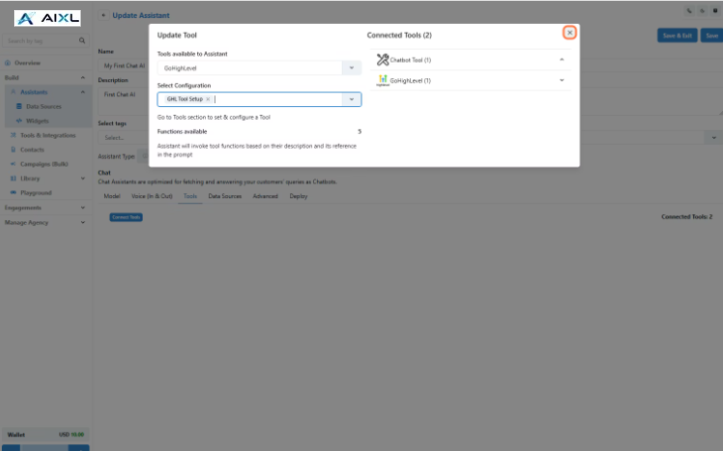
- Use Prompts to Trigger GHL Calendar Functions
Navigate to the Prompt section in the assistant editor. Define instructions that allow your assistant to:
- Check availability
- Book appointments
- Use other GHL calendar actions