uick Starts
Create and Manage Data Sources
Add knowledge to your assistant by uploading documents, scraping websites, or pasting raw content — so it can answer queries accurately based on your data.
Create PDF Data Source:
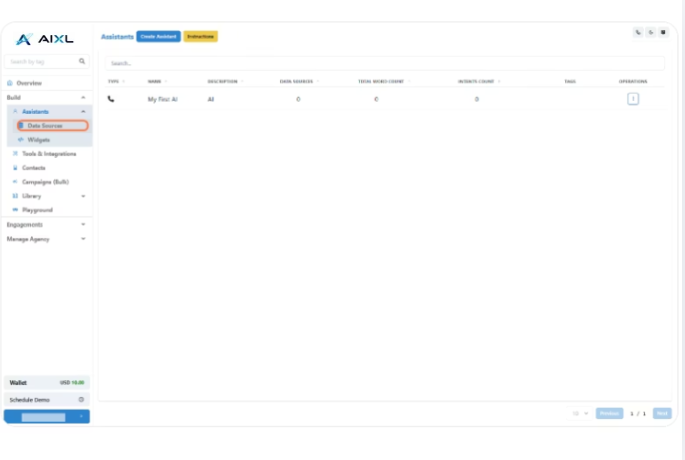
- Click on Data Sources
- Click on Create Data Source
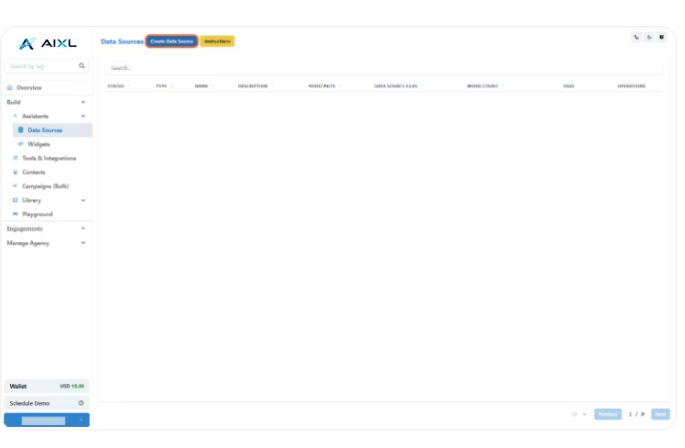
Available Options to Add Your Knowledge BaseInsighto supports multiple formats to help you upload or link your assistant’s knowledge:✅ PDF Upload – Upload documents like policy guides, manuals, or help docs
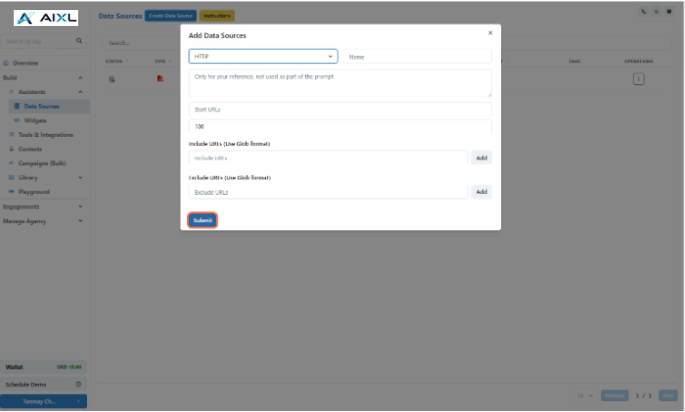
🌐 Website Scraper (HTTP) – Provide a website URL for the AI to crawl and specify the maximum number of pages (default Value: 100)
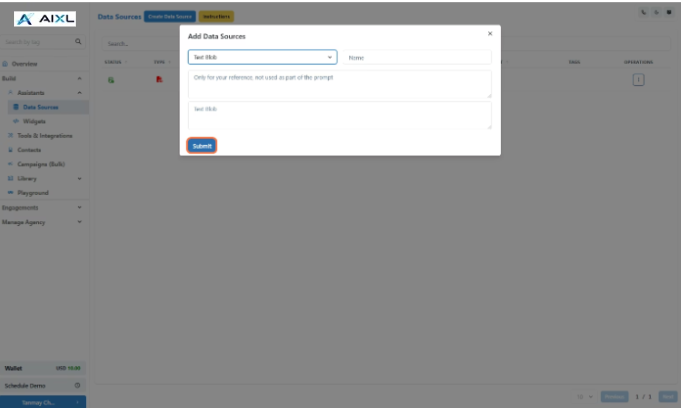
📝 Text Blob – Manually paste raw text
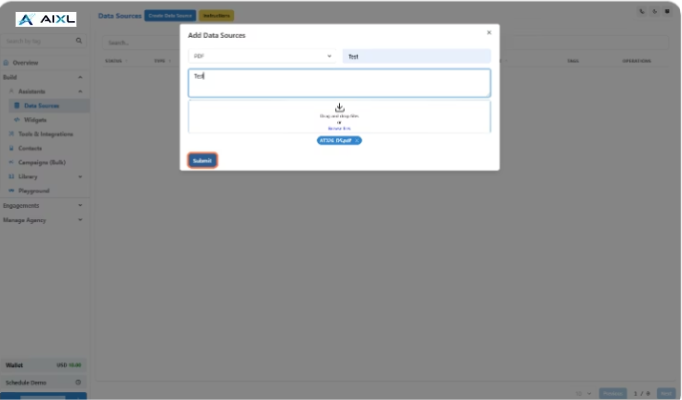
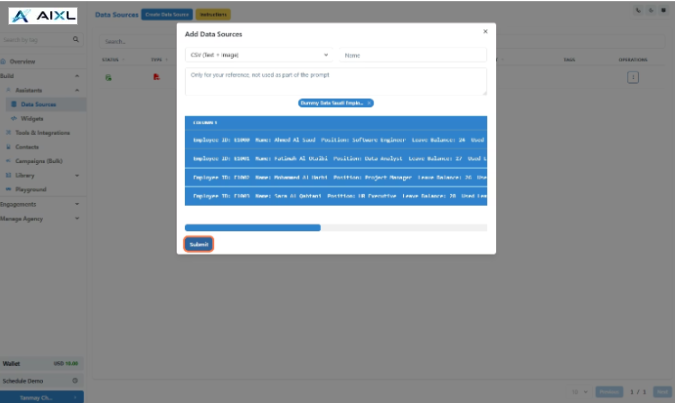
📊 CSV Upload – Upload a two-column CSV file where one column holds text and the other can include image URLs (great for visual FAQs or catalogs)📌 In this guide, we’ll walk you through uploading a PDF as your data source.
- Upload Your PDF File
- Indexing in Progress
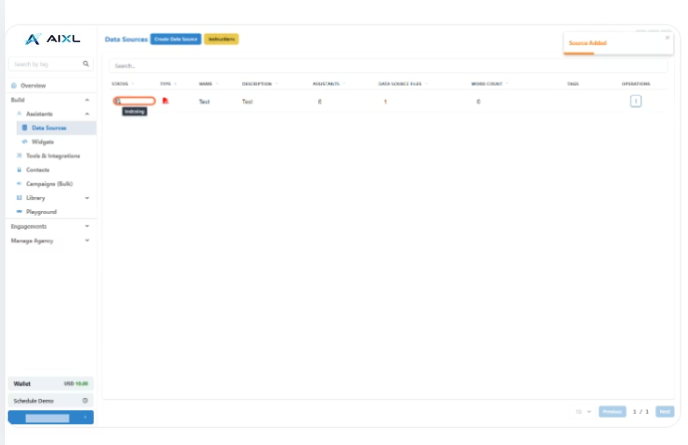
- Data Source Ready to Use
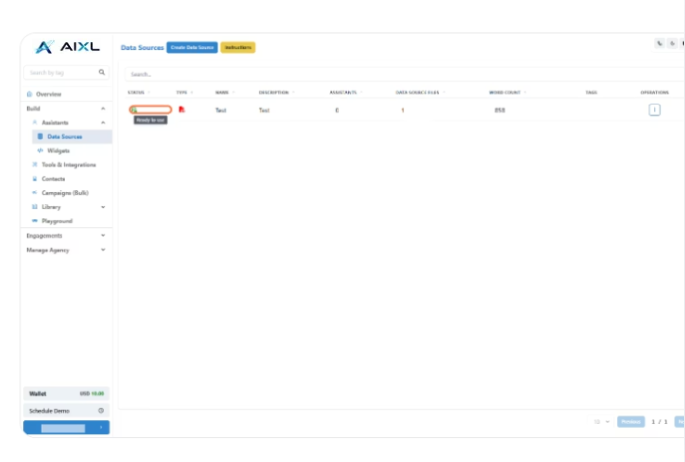
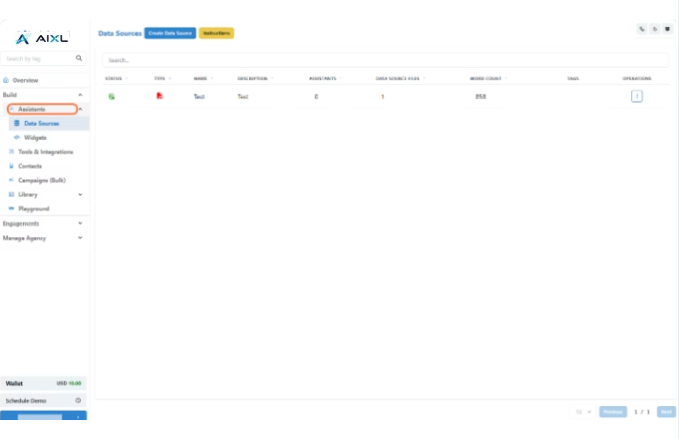
- Click on Assistants
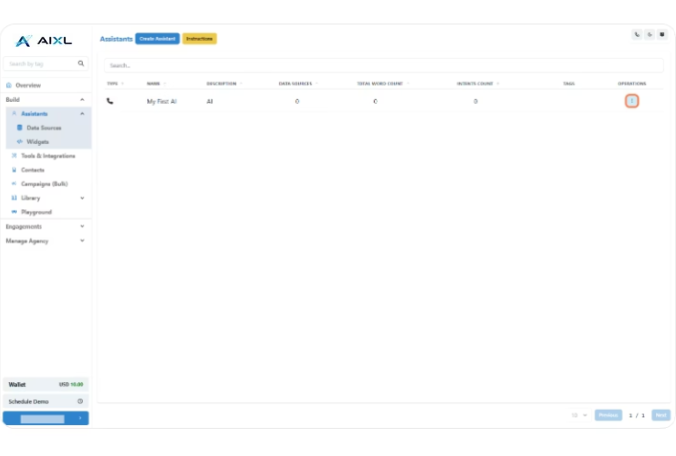
- Click on Options
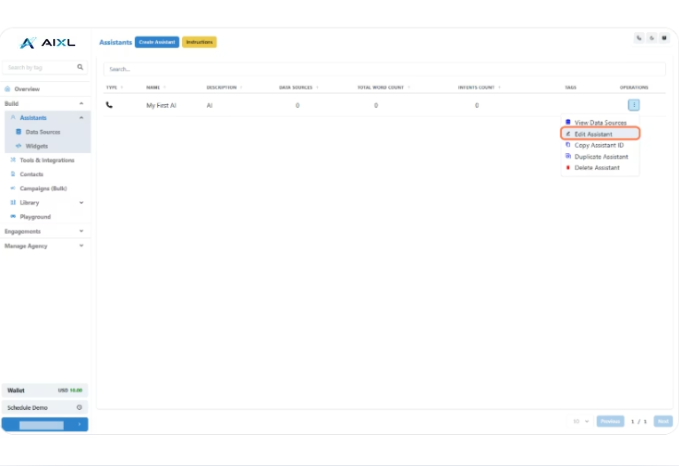
- Click on Edit Assistant
- Click on Data Sources
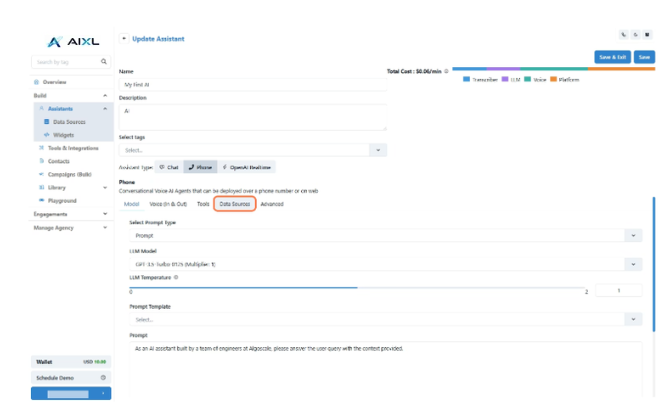
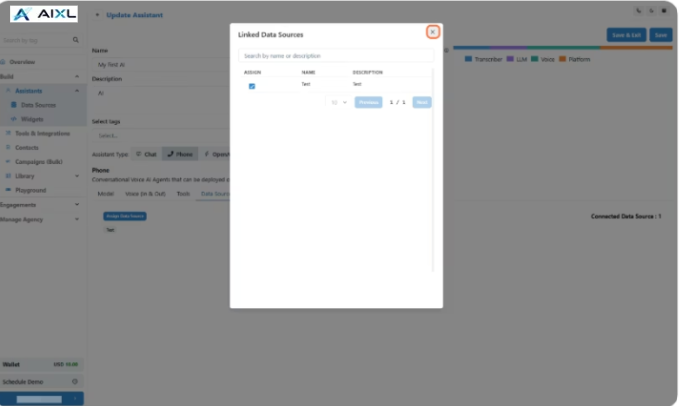
- Click on Assign Data Source
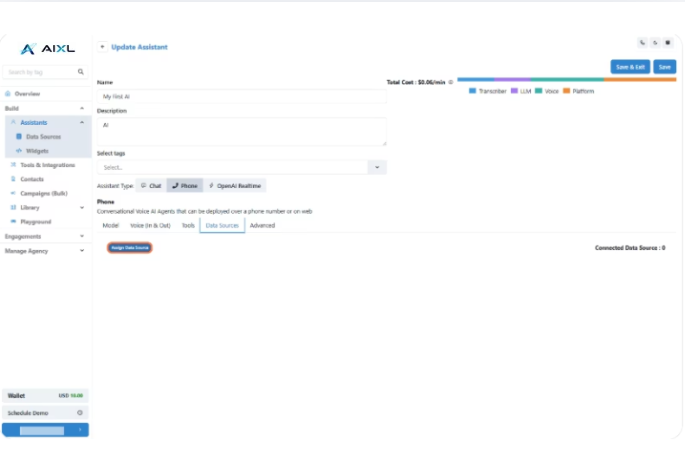
- Connect the Data Source
📂 Add Data Source: HTTP, CSV or Text Blob
In addition to uploading a PDF, you can also connect your assistant to a CSV file or Text Blob or Scraped data from website.
Choose the method that best fits your data
- HTTP Type Data source
- Text Blob Data Source
- CSV ( Text + Image) Data Source
🛠️ Troubleshooting & FAQs
| Issue | Description | Solution |
|---|---|---|
| Data source status shows “Failed” | This can happen if the format of the uploaded file is incorrect or the website crawler didn’t complete the indexing. Only a few pages may be crawled. | Delete the data source and upload it again. |
| Unable to delete the data source | If a data source is connected to an assistant, the delete option will not be visible. | First disconnect it from any assistant it’s assigned to. |
| What is the word count? | Indicates the total number of words in the uploaded data source. Each plan has word count limits. | You can check your usage in the Billing & Usage section of your account. |
| Add another file to an existing data source | You can either create a new data source or upload another file to the existing one. | Ensure the file is of the same type (e.g., add a PDF to an existing PDF data source). |
| Will the data update automatically after website crawl? | No, crawled data is static. | If the website content changes, you must manually recrawl it to update the data. |
| Connect to a dynamic database | Useful for live, frequently updating data. | Use the Custom Tools option under Tools & Integrations to set up dynamic data connections via API. |