Quick Starts
Build Your First Chat Agent
Build a simple Chat assistant and deploy it on your website either using HTML iframe or Chat type Widget.
No knowledge base or tools for now — just a quick way to get started.
- Log in to your Insighto.ai account.
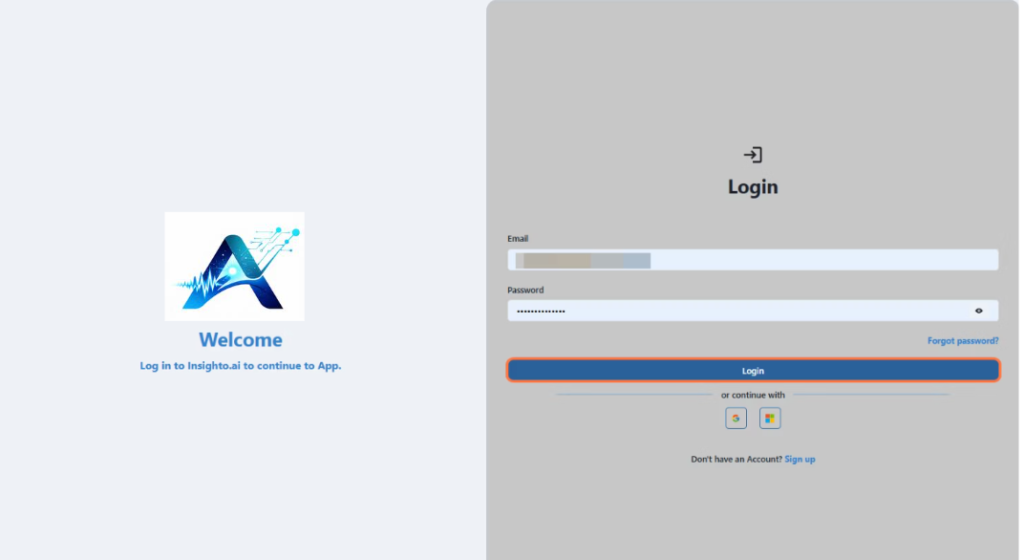
Start with Creating Assistant
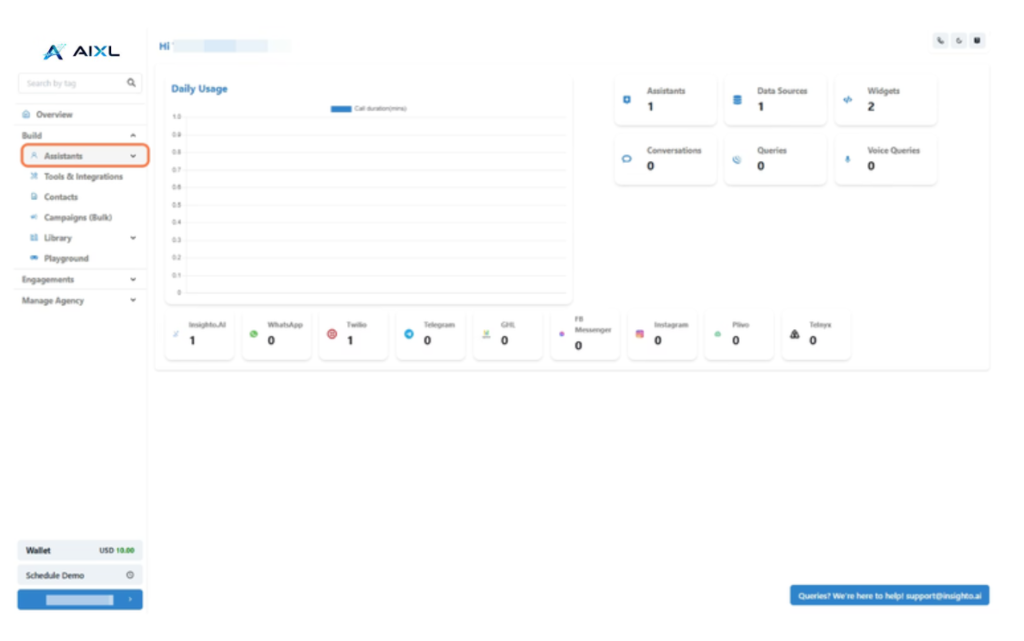
- From the left panel, click on Assistants.
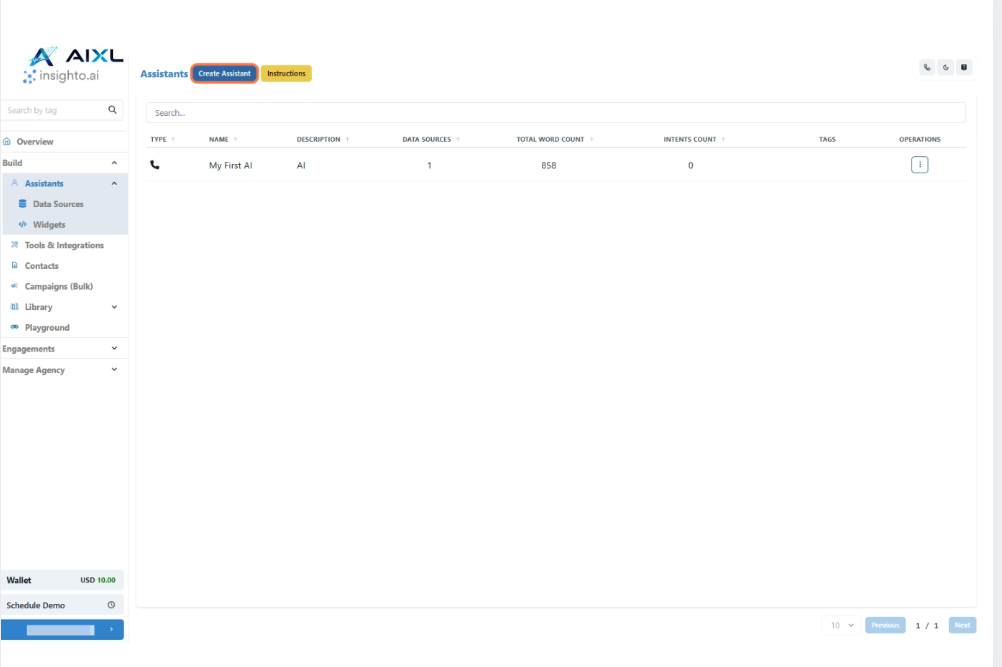
- Click the “Create Assistant” button
- Enter a name & Description for your assistant.
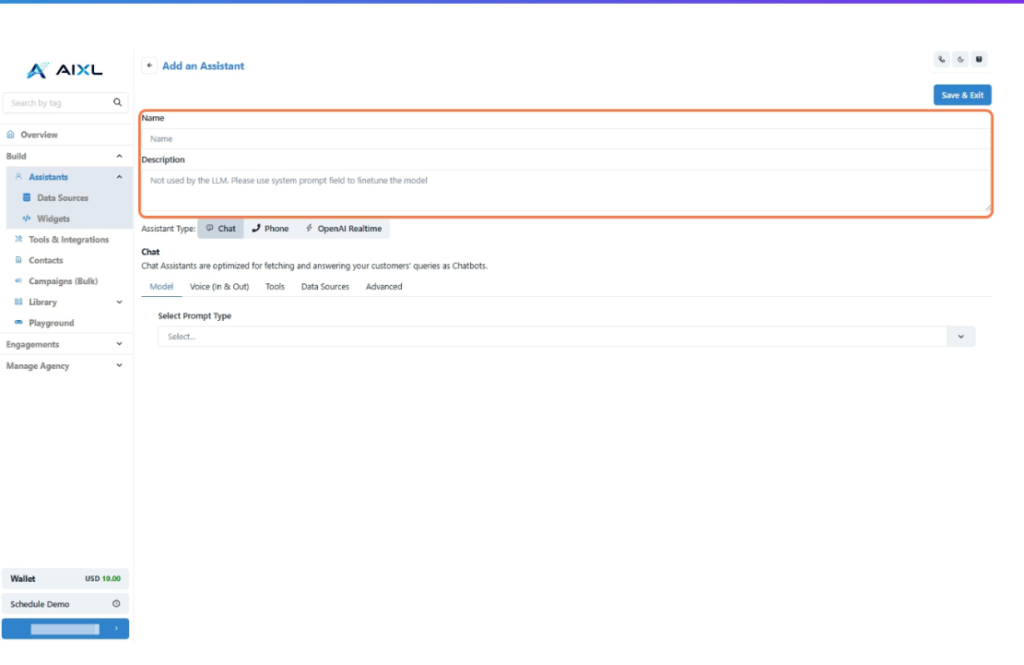
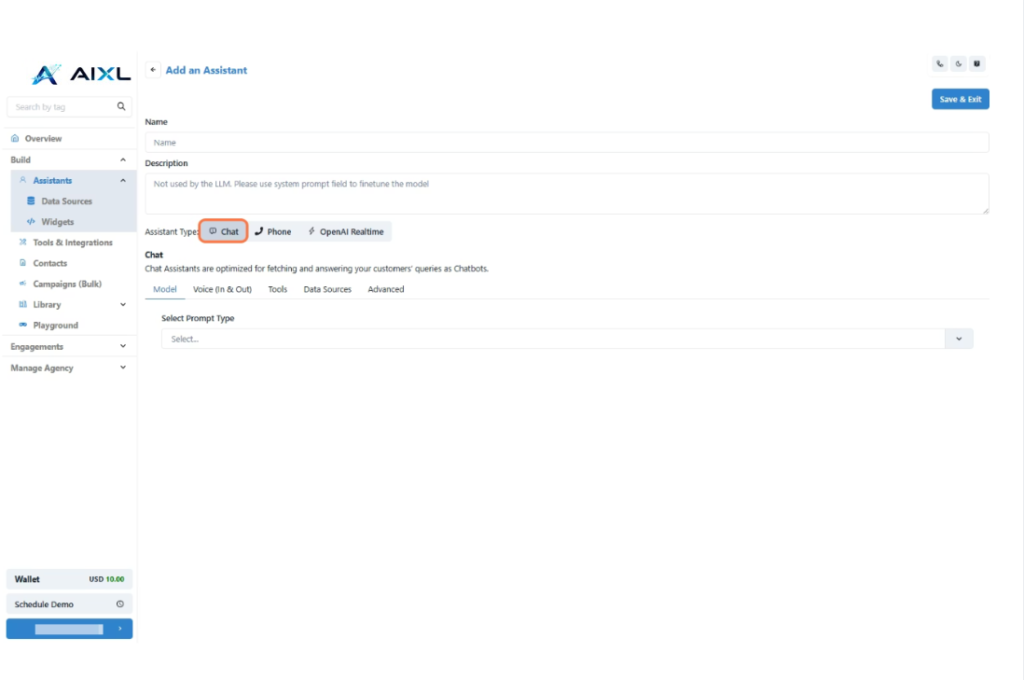
- Set the Assistant Type to Chat
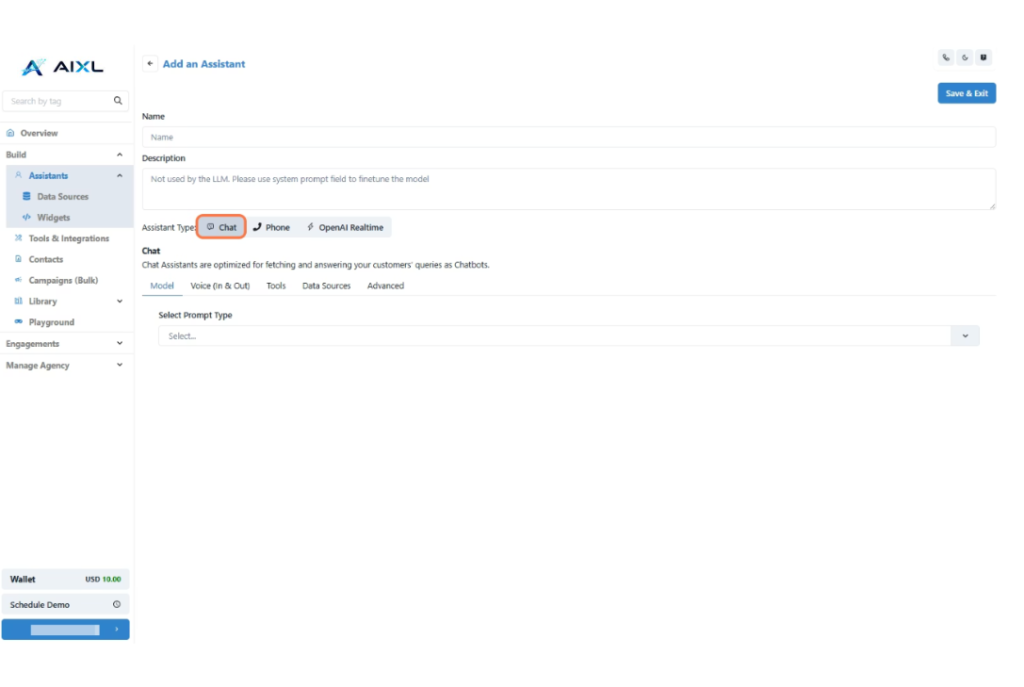
- Go to Model Tab
Under this, the assistant is set to Prompt by default.The default LLM is GPT-3.5, but you can choose another model from the dropdown.Adjust the temperature if needed (higher = more creative, lower = more precise).In the Prompt box, enter a simple instruction like:
“Greet the user and ask how you can assist them today.” or Add your prompt according to use-case.
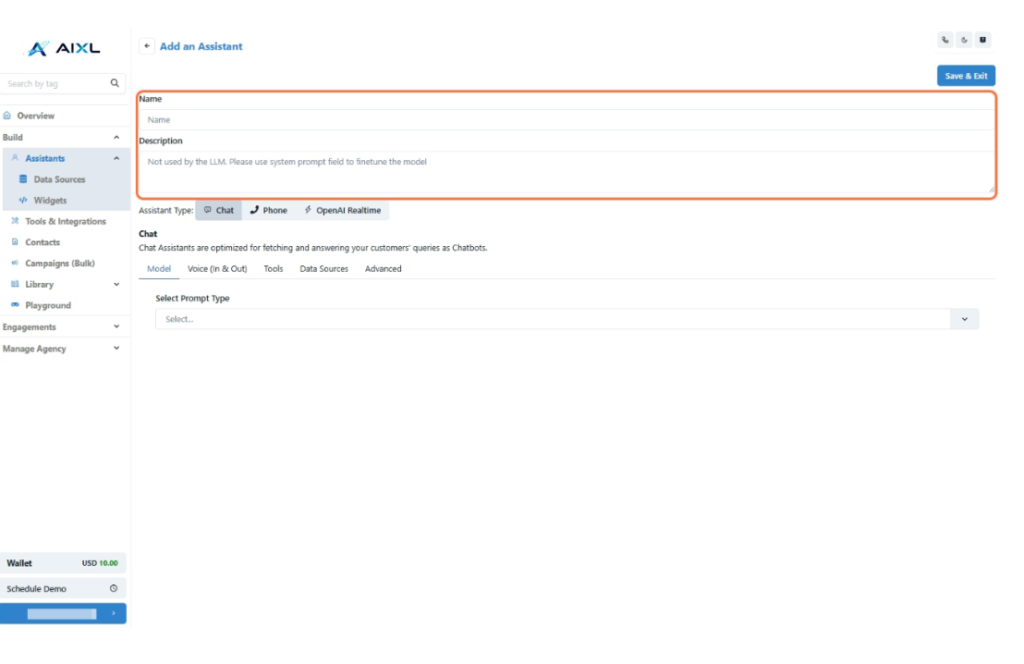
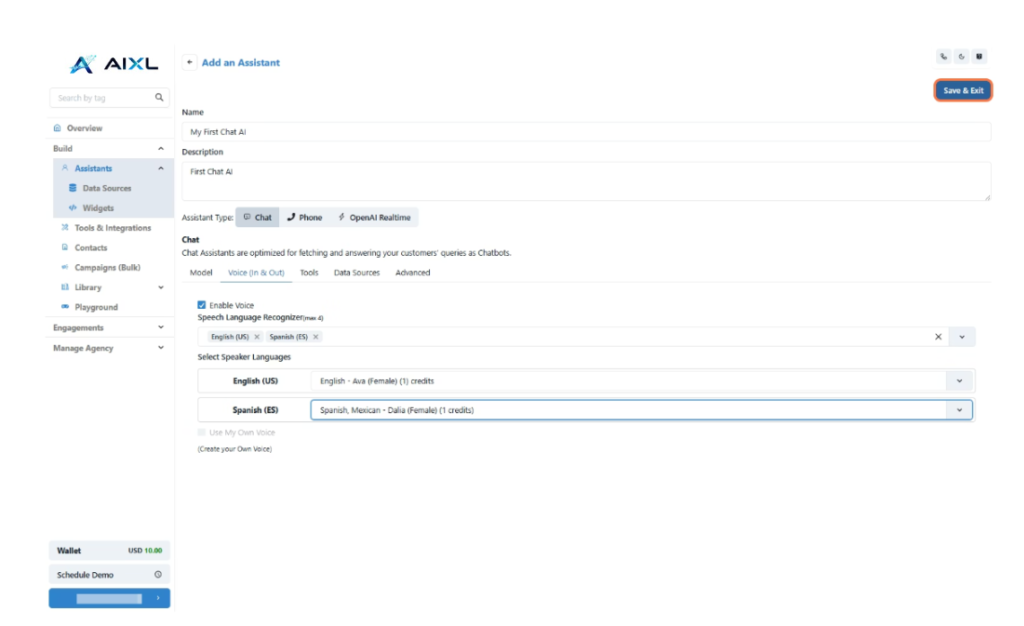
- Click on Voice Tab
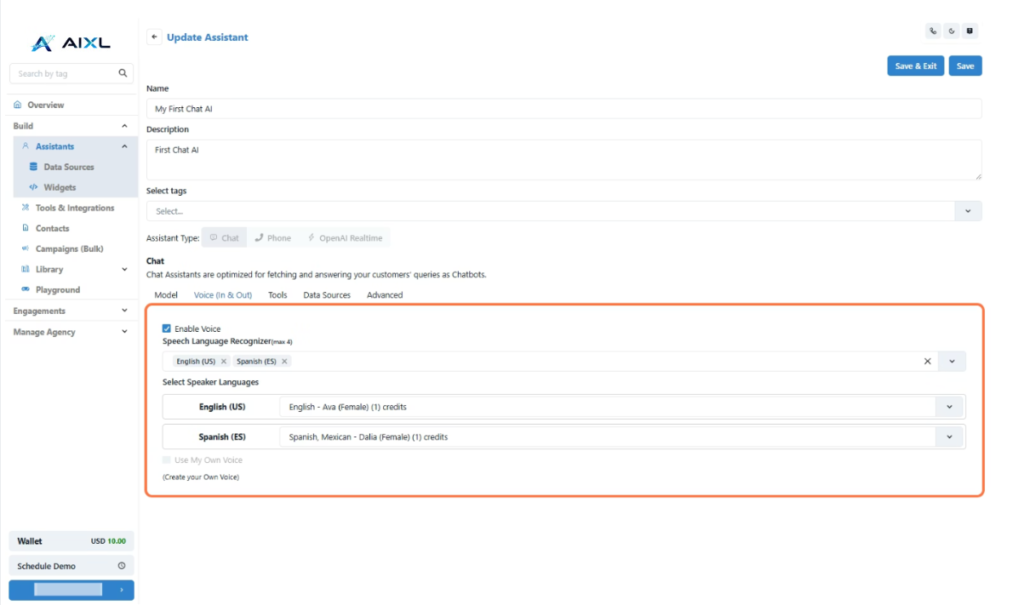
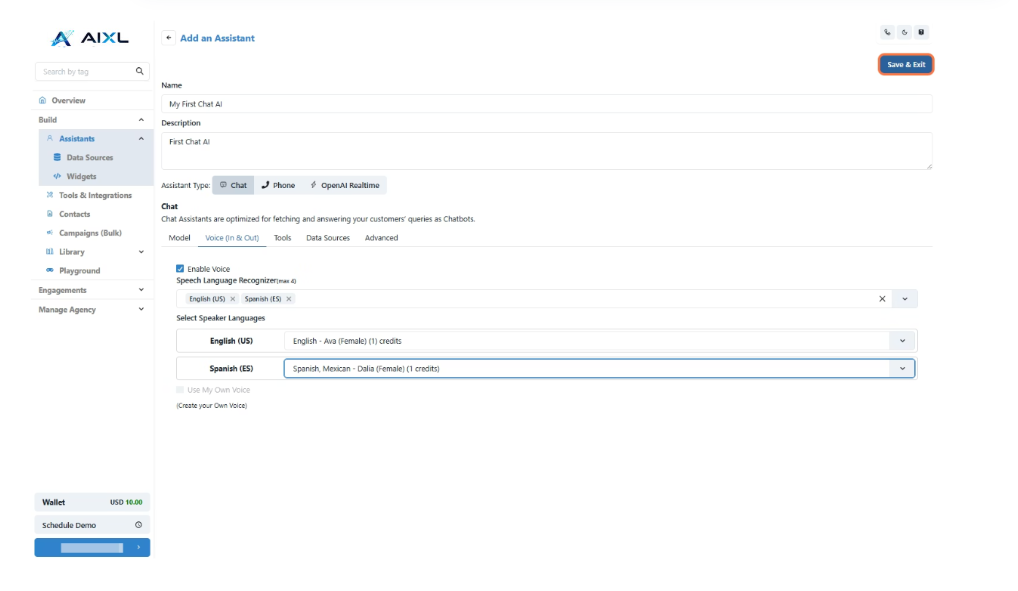
- Enable Voice for Your Chatbot
Add a human-like touch to your chatbot by enabling voice interaction! This feature allows users to speak their queries instead of typing—and receive spoken responses from the bot in return.✅ What You Can Do in This Step:
Select Supported Languages (Max 4)
From the dropdown menu, choose up to 4 languages that your chatbot will support for both speech recognition (input) and voice response (output).Choose AI Voices for Each Language
For each selected language, pick the AI voice profile your bot will use when speaking responses. These voices are pre-trained for natural tone and clarity, ensuring a smooth user experience.🛠 Example:
If you select Arabic, English, Hindi, and French, your bot will:
- Understand queries spoken in any of these languages.
- Reply in the same language using the chosen AI voice.
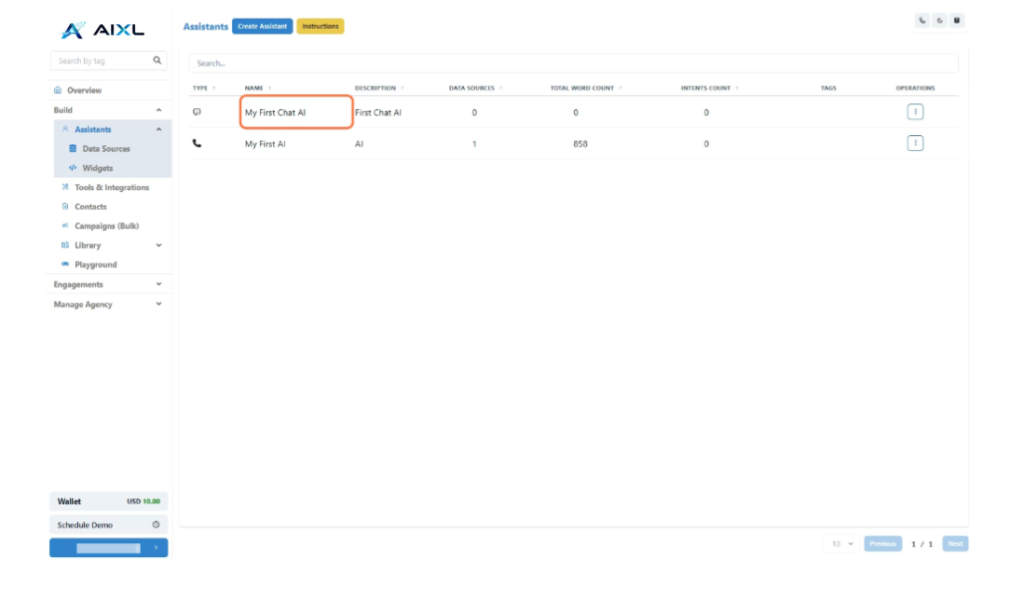
- 🎉 Congratulations!
Your first AI Chat assistant is now configured
Creating a Widget
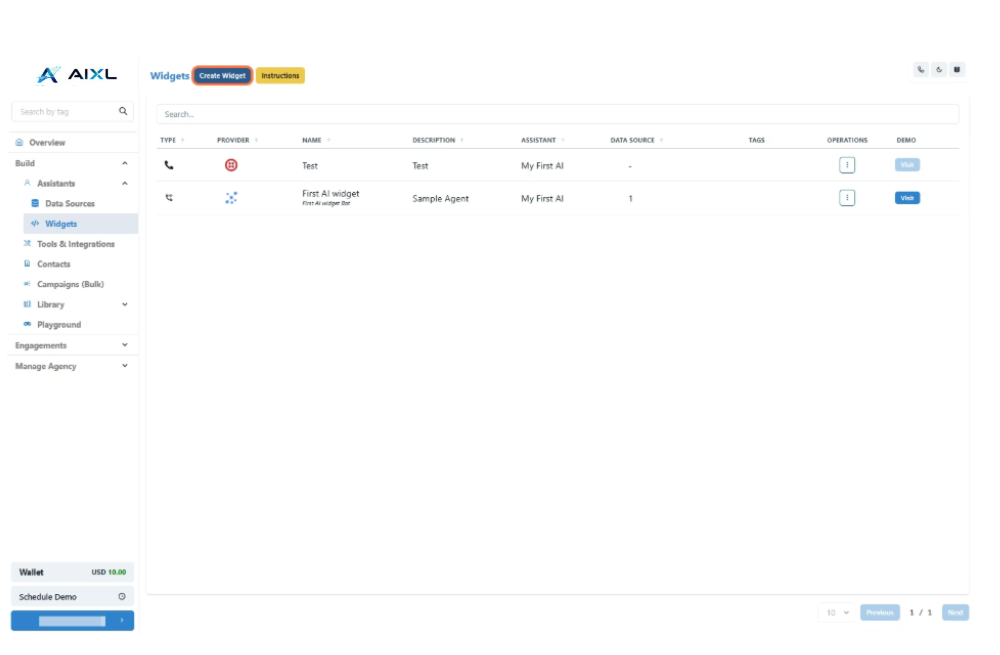
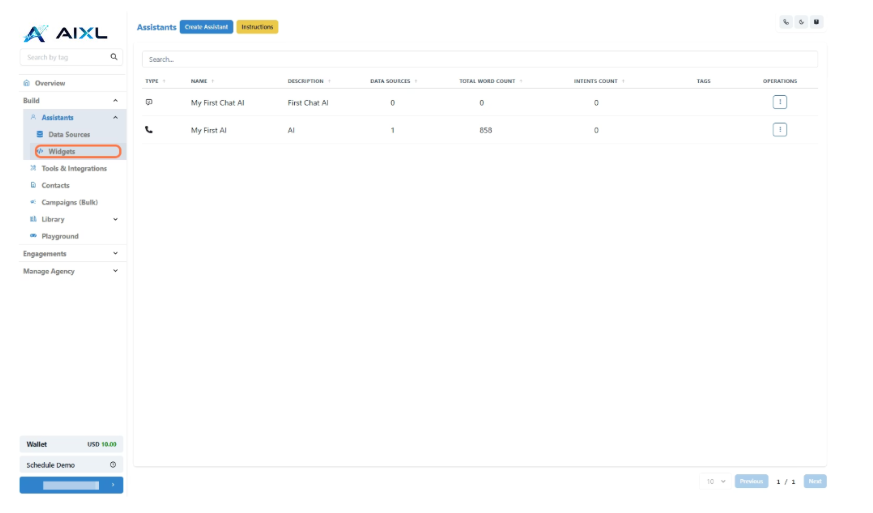
- Click on Widgets
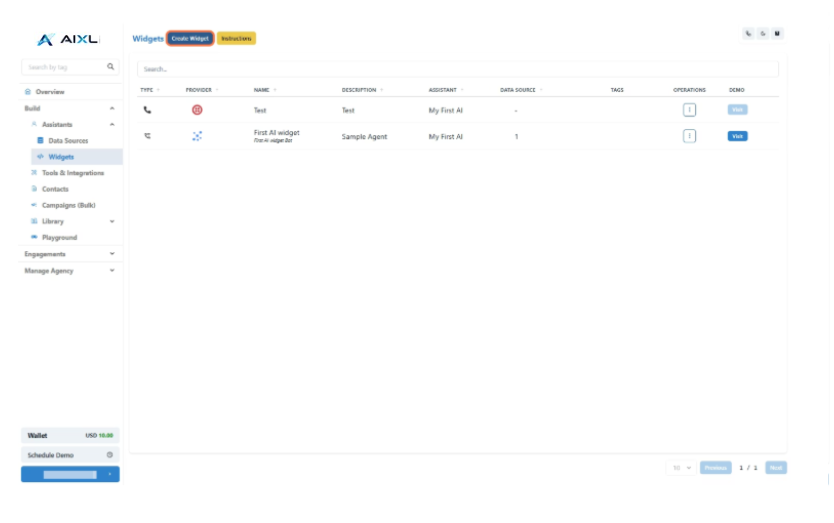
- Click on Create Widget
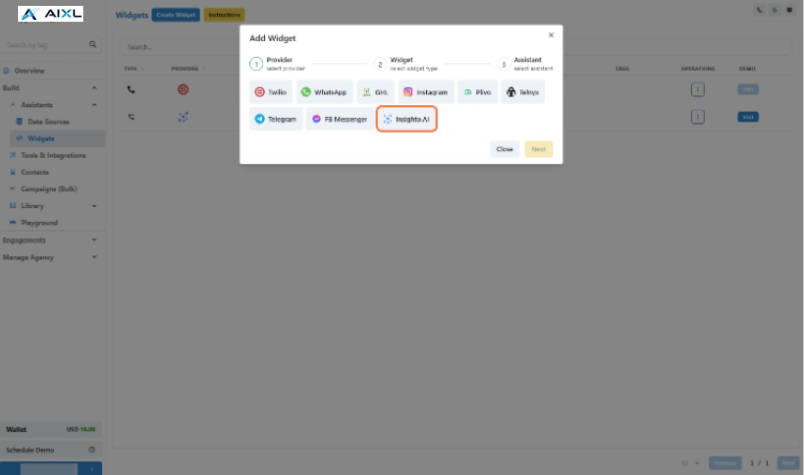
- Select Insighto.ai
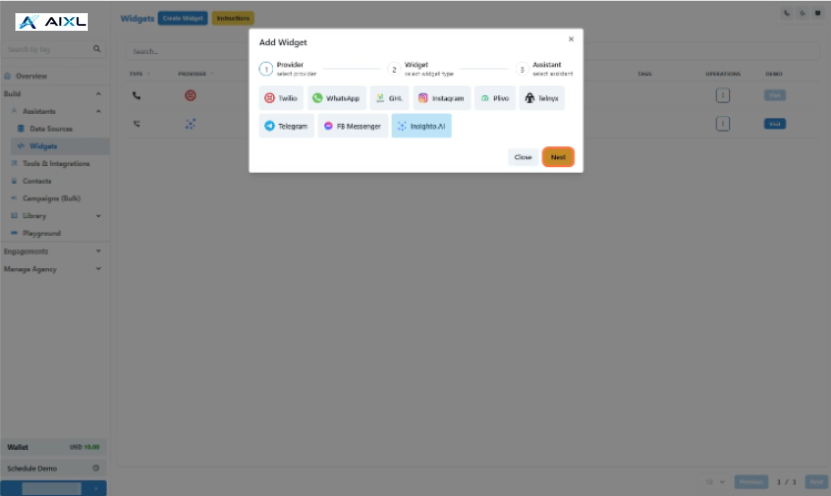
- Click on Next
- Click on Embed AI Agent Chat as shown below
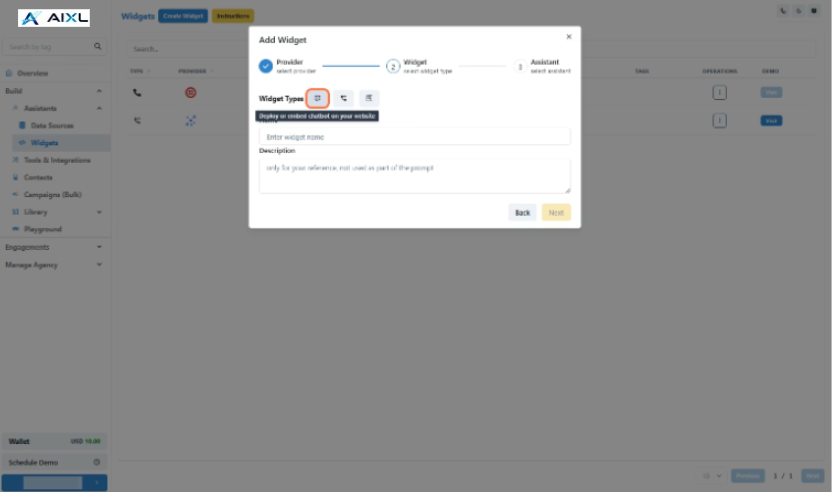
- Click on Next
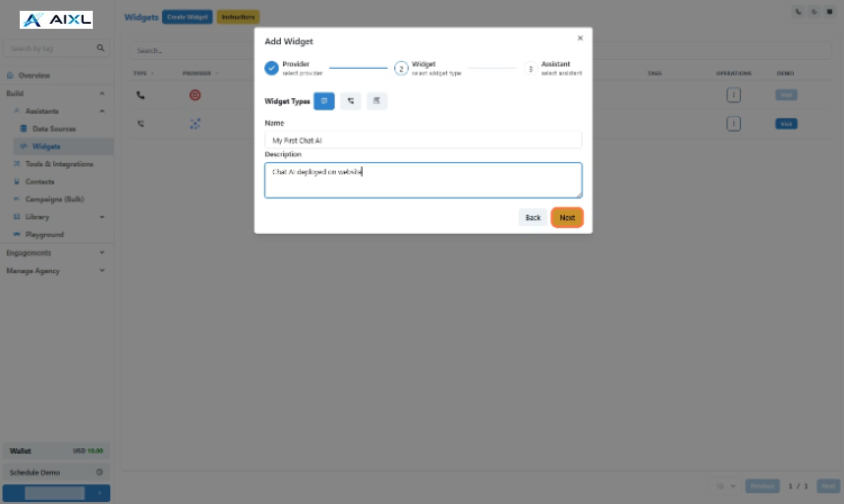
- Select the Assistant and click Next
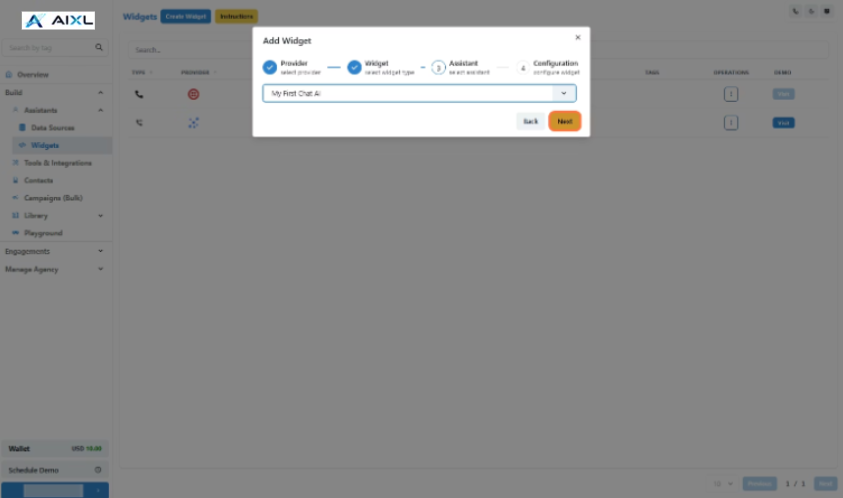
- Final Step: Widget Setup Complete!
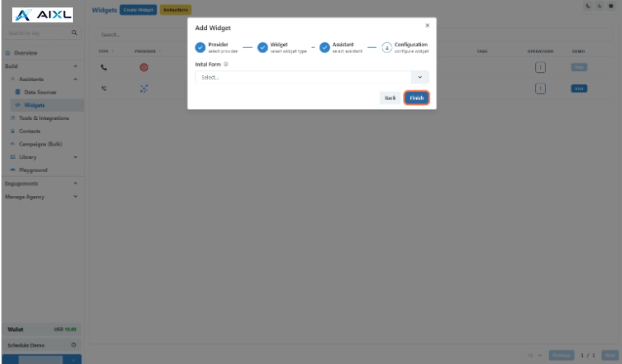
- 🎉 Congratulations! Your Widget is created
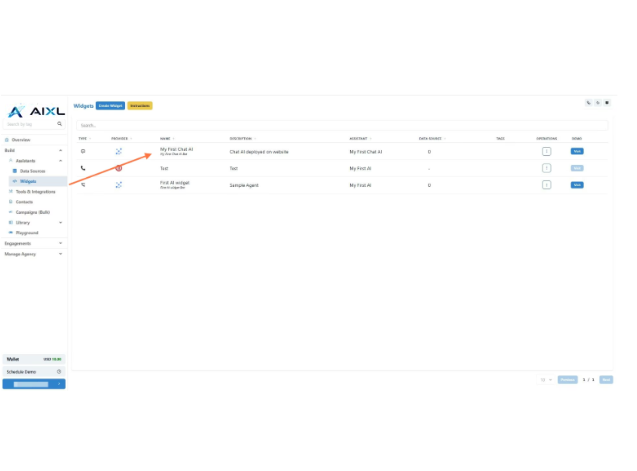
- Click on Visit
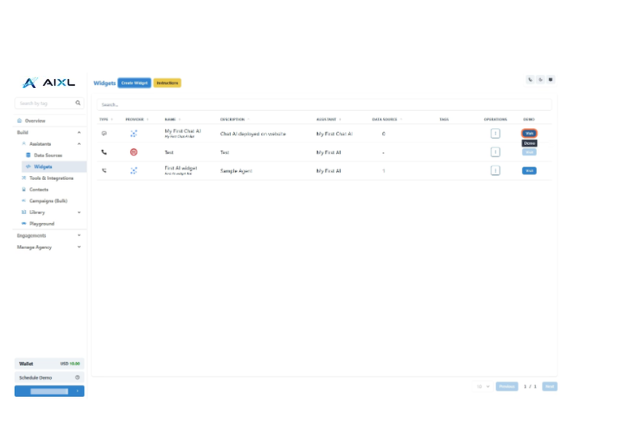
- Chatbot Demo Window in New tab
Test your chat widget here before deploying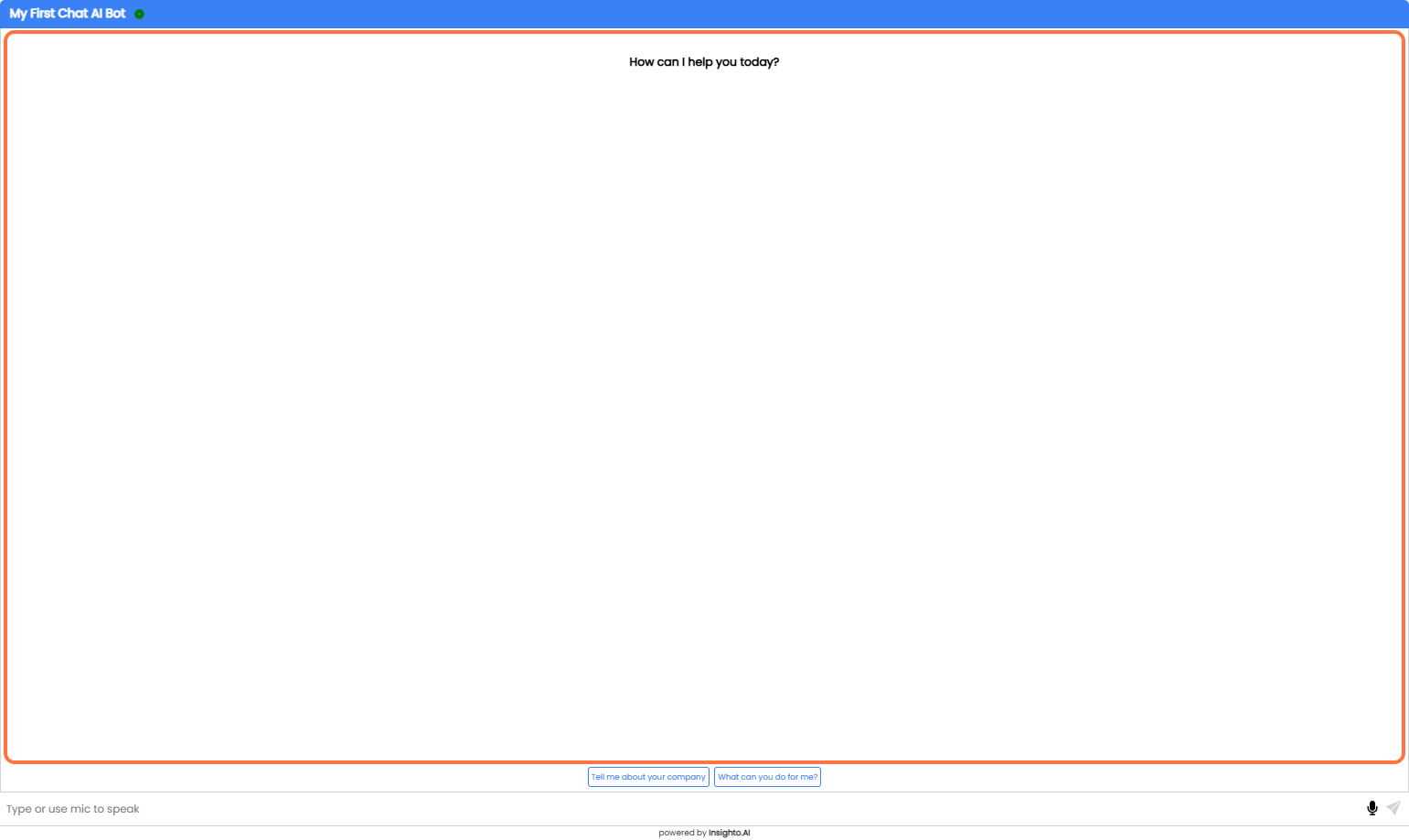
Deploy it on your website now!
- Click on Options
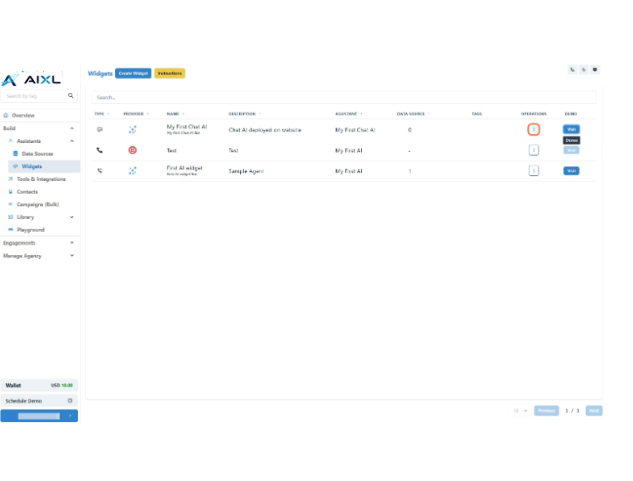
- Click on Get Code & QR
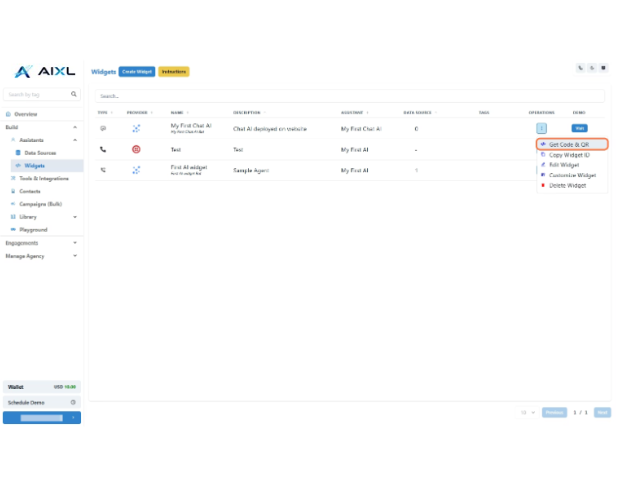
- Choose Widget Version & Deployment Type
Choose how your chatbot appears on your site:Widget Version
Select from:
- Modern (Recommended) – Latest design and features
- Legacy – For older setups
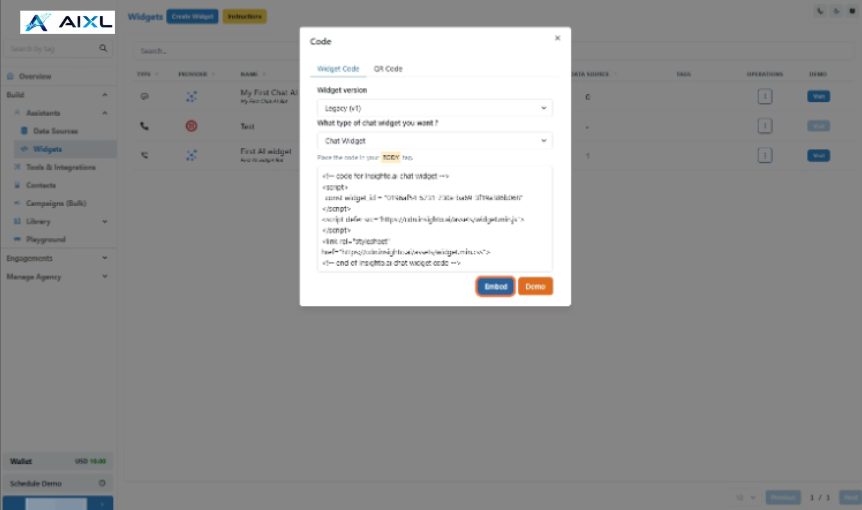
Deployment Type
- HTML iFrame – Embed in a fixed section of your site
- Chat Widget – Floating bubble on your webpage